
Adding and Using Contacts, Connections & Notes
How to add a contact in KeeperCircle, connect kids to their parents and to your own children, and keep private household notes. A walkthrough with screenshots.
Contacts in KeeperCircle hold three general kinds of information.
- Details are who they are: name, phone numbers, emails, address, website, birthday, category.
- Connections are who they belong with: which parents go with which kid, and which of your own children know them.
- Notes are what your household knows about them: "prefers text," "dad handles weekends," the date they last fixed the furnace.
The idea that ties it together: Edit is for who they are. Their typical usage contact page is for who they're connected to and special things you've noted.
The rest of this article walks through adding a contact, connecting people, and keeping notes.
Add a contact the quick way
Most of the time you have a name and maybe a number, and you want it saved before you forget.
Advertisement
Ads support the free tier. Paid households are ad-free.
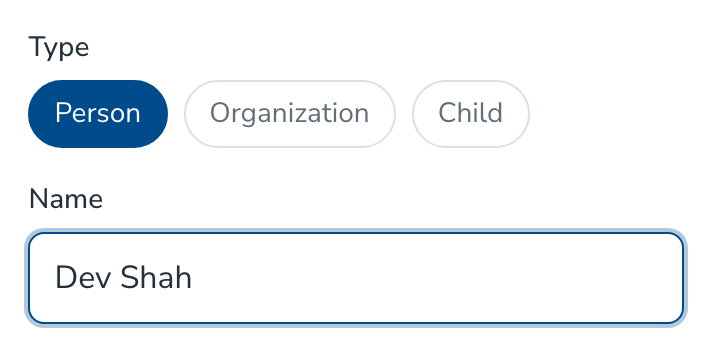
Tap Add contact at the top of any page. Type the name, then choose what kind of contact it is: Person, Organization, or Child. Save.
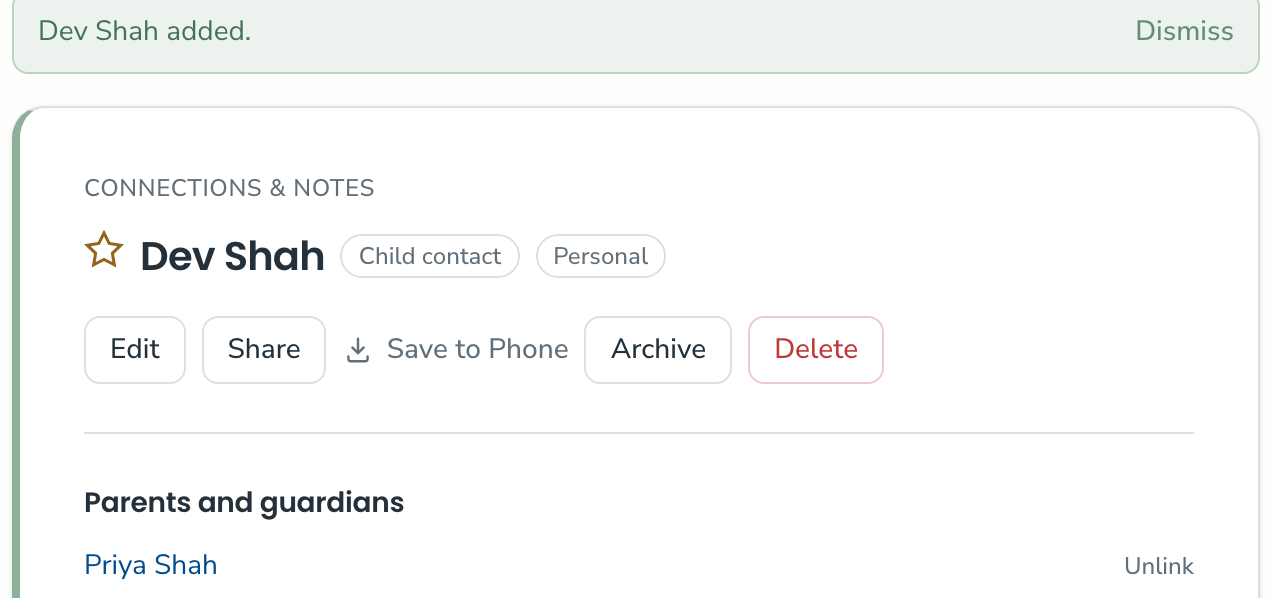
You land on the new contact's page with a green bar confirming it was added. Everything else can wait until you have the details.
Three choices are immediately presented to you. Person is any adult. Organization is a business or group, such as the pediatrician's office or the swim club. Child is a kid who isn't yours, usually one of your children's friends. Your own kids are set up separately, under Household children in the account menu.
Add a contact with the full form
When you have more to enter, choose Open full form from quick add; though you can always just add the contact quickly now and edit the details later. The full form holds all the details: phones, emails, address, website, birthday, a category, and how the person relates to your household.
For families, one checkbox does most of the work: This contact is a child. Tick it and two sections appear.
- Which of your children do they know? A checklist of your household children, with room for a short note next to each.
- Parents and guardians. Search for a parent you've already saved, or add a new one with a name and a phone number. The phone is optional, since you often won't have it yet. But this is part of the whole point of this product; once you get that, you have it tied to the kid(s) your children know. You can add these things over time and stop hunting. And also not have to have summer camp contacts you hardly use with cryptic labels in your regular phone contact list.
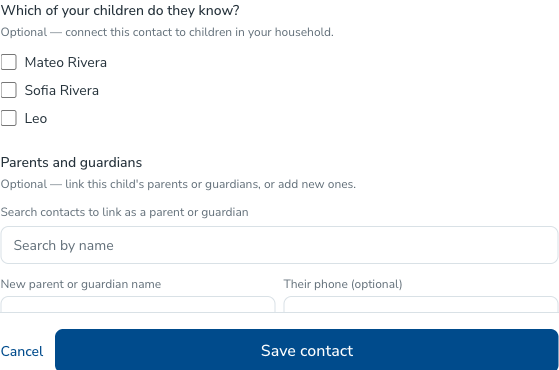
Example: a new friend and their mom, in one save
Your son Leo has a new friend, Dev. Dev's mom is Priya, and she just texted you about Saturday.
- Open the full form and enter Dev Shah.
- Tick This contact is a child.
- Under Which of your children do they know?, check Leo. Add a note if it helps, such as "Ms. Ortiz's class."
- Under Parents and guardians, add Priya Shah and her number.
- Save.
That one save creates two contacts, Dev and Priya, already connected to each other and to Leo.
There's a shortcut if you're starting from your own child. Open Household children, choose Leo, and tap Add a friend of Leo. The form opens with Leo already checked.
The contact's page: Connections & Notes
Open any contact and you'll see a small label above the name: Connections & Notes. This page is where you manage everything that ties a contact to your household.
On a child's page, the Parents and guardians section lists the adults who go with that kid. Search to connect someone you've already saved, or use Add a new parent or guardian to create one on the spot.
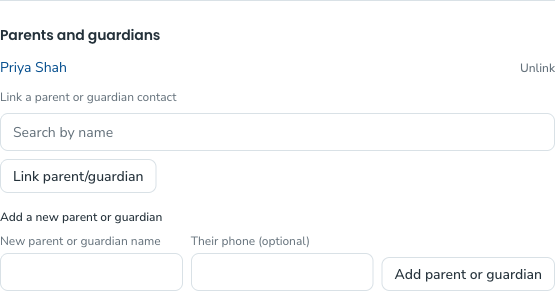
On an adult's page, the Parent or guardian of section works the same way in the other direction. Connect Priya to Dev from her page, or add a new child contact right there. If an adult has no kids connected, the section stays folded down to one line so it's out of your way.
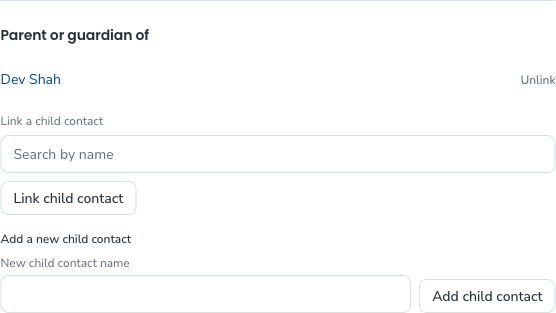
Three things to know about connections:
- Either side works. Connect from the child's page or the parent's page. It's one connection, and it shows up on both.
- Each change saves by itself. There's no Save button for the whole page. Add or remove a connection and it's done.
- No match is not a dead end. If you search for someone who isn't saved yet, an Add "their name" as new option appears. Choose it and keep going.
A child's page also shows Connected to your children, so you can see at a glance that Dev is Leo's friend and not his sister's.
Edit Contact Details
To change a contact's own information, tap Edit. The page that opens is titled Edit Contact Details, and it's one form with one Save button.

This is where you fix a misspelled name, add a second phone number, or update an address. Connections aren't changed here. When you edit a child, you'll see their parents and guardians listed for reference, with a Manage parents and guardians link that takes you back to the right spot.
Notes: what your household knows
Details tell you how to reach someone. Notes tell you how it usually goes.
- "Prefers text. Don't call during work hours."
- "They drove last time, so it's our turn."
- "Gate code is on the fridge list."
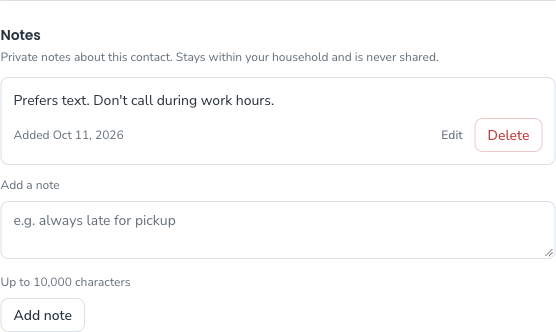
Use Notes for things that stay true, and History for things that happened on a date, such as the day the plumber replaced the water heater. A year from now, "who did we use last time, and were they any good?" has an answer.
Notes and history stay within your household and are never shared. When you share a contact with someone, they get the details and nothing else. A caregiver with view-only access never sees notes or history either.
Using what you've added
Once people are in, finding and using them takes seconds.
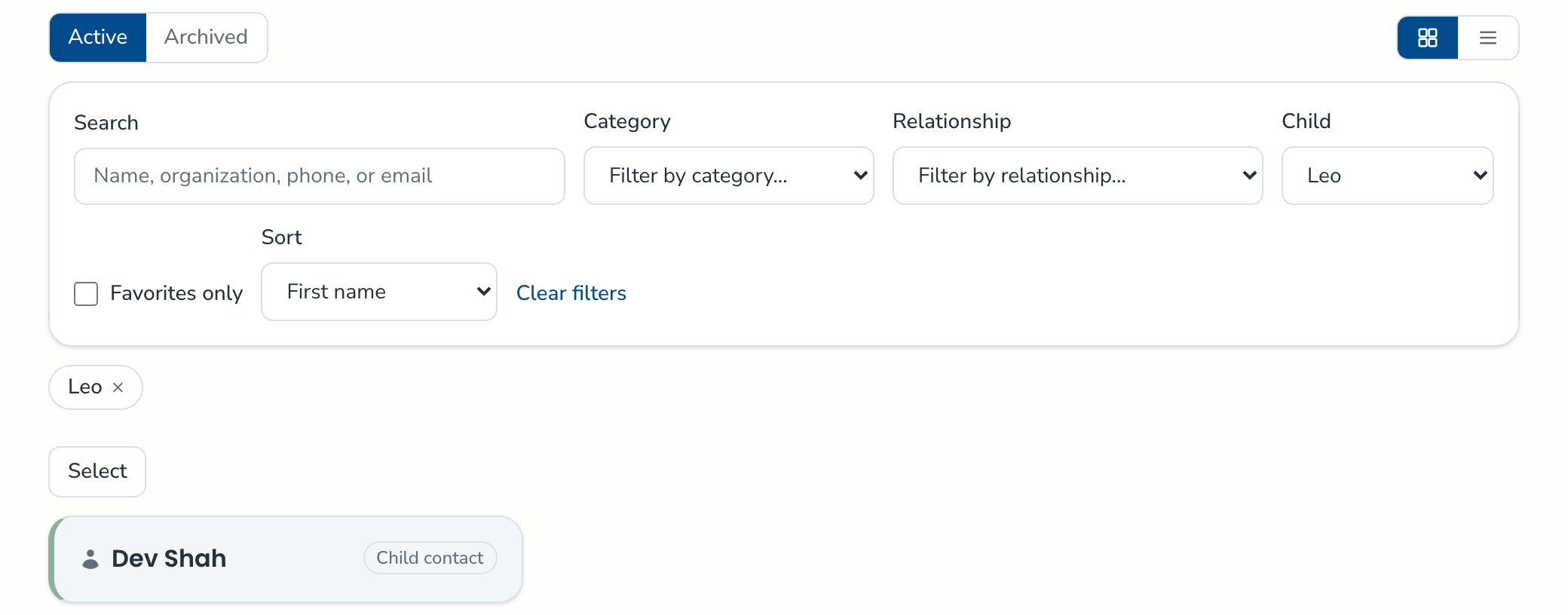
- Search by name from the Contacts page.
- Sort by first name, last name, recently added, or recently updated.
- Filter by category, or by one of your children to see everyone connected to that child. That's the whole Saturday carpool in one view.
- Share a contact when another parent asks for the sitter's number.
- Save to Phone when you want one contact back in your phone's address book.
- Archive people you might need again, and Delete the ones you won't. Deleted contacts can be restored for 30 days.
Three habits that keep it useful
Capture the connection when you add the contact. "Priya Shah" on its own will mean nothing in March. Priya connected to Dev, and Dev connected to Leo, still makes sense a year later.
Make changes in one place. When a number changes, update it in KeeperCircle and everyone in your household sees the new one.
Write down what you'd otherwise have to remember. If you've ever scrolled back through months of texts to find out who drove last time, that was a note waiting to be written.
Keep going
- Bringing contacts over from your phone? See How to Import iPhone Contacts Into KeeperCircle.
- More on the parent-contact problem: How to Keep Track of Your Kids' Friends' Parents.
- Step-by-step guides: Share a Contact, Give a Caregiver View-Only Access, and Archive, Delete, and Restore Contacts.