
How to Import iPhone Contacts Into KeeperCircle (Without Bringing Your Whole Address Book)
Build a short list on your iPhone, export it as one file, and import it to KeeperCircle. A step-by-step guide with screenshots, including what to do with the phone copies afterward.
To get a jumpstart on imports from an iPhone, you can create a list of just the contacts you want to import, save them as a file, then import that file to KeeperCircle. After that, if you want to remove them from cluttering up your phone, that's fine. Just remember the two copies aren't synced if anything changes.
That's the whole idea. The rest of this article is the step-by-step version, with a screenshot for each tap. It takes about ten minutes.
Why a list, and not everything
Your iPhone will happily export every contact you've ever saved. Please don't. Your address book holds your college roommate, three former coworkers, and a pizza place in a city you left in 2019. Your household doesn't need any of them.
Advertisement
Ads support the free tier. Paid households are ad-free.
What the household does need is the short stack of family contacts: the kids' friends' parents, the coaches, the sitters, the pediatrician, the plumber, the neighbor with the spare key. A list lets you pick exactly those people and leave everyone else where they are.
What you'll need
- An iPhone running iOS 16 or later. The screenshots below are from a current iPhone. Older versions look a little different, but the steps are the same.
- Your KeeperCircle sign-in.
- About ten minutes.
Step 1: Create a list on your iPhone
Open your contacts and go to the Lists screen. If you're looking at your full contact list instead, tap the back arrow in the top-left corner to get there.
Tap Add List in the top-right corner.
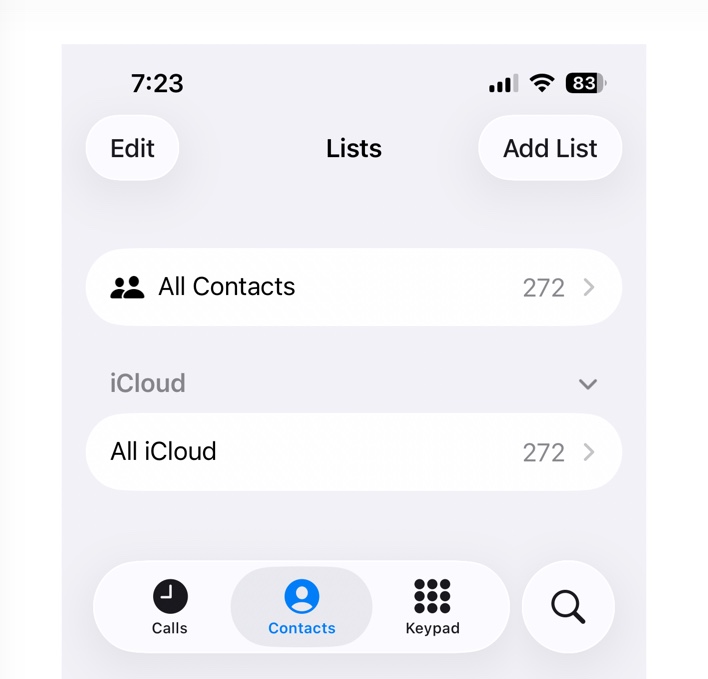
A blank List Name line appears under your existing lists.
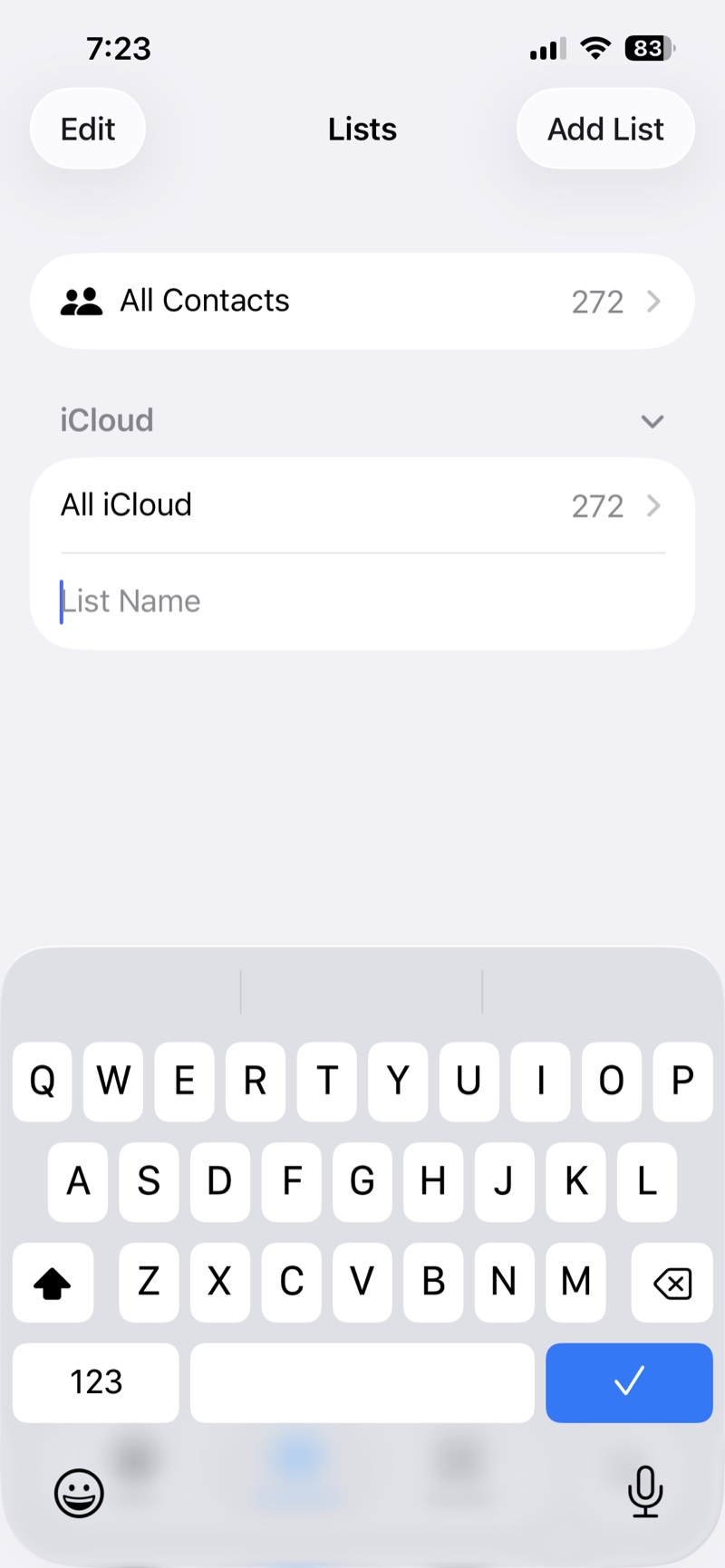
Type a name you'll recognize later. We used "Keeper Export." Then tap the blue checkmark on the keyboard.
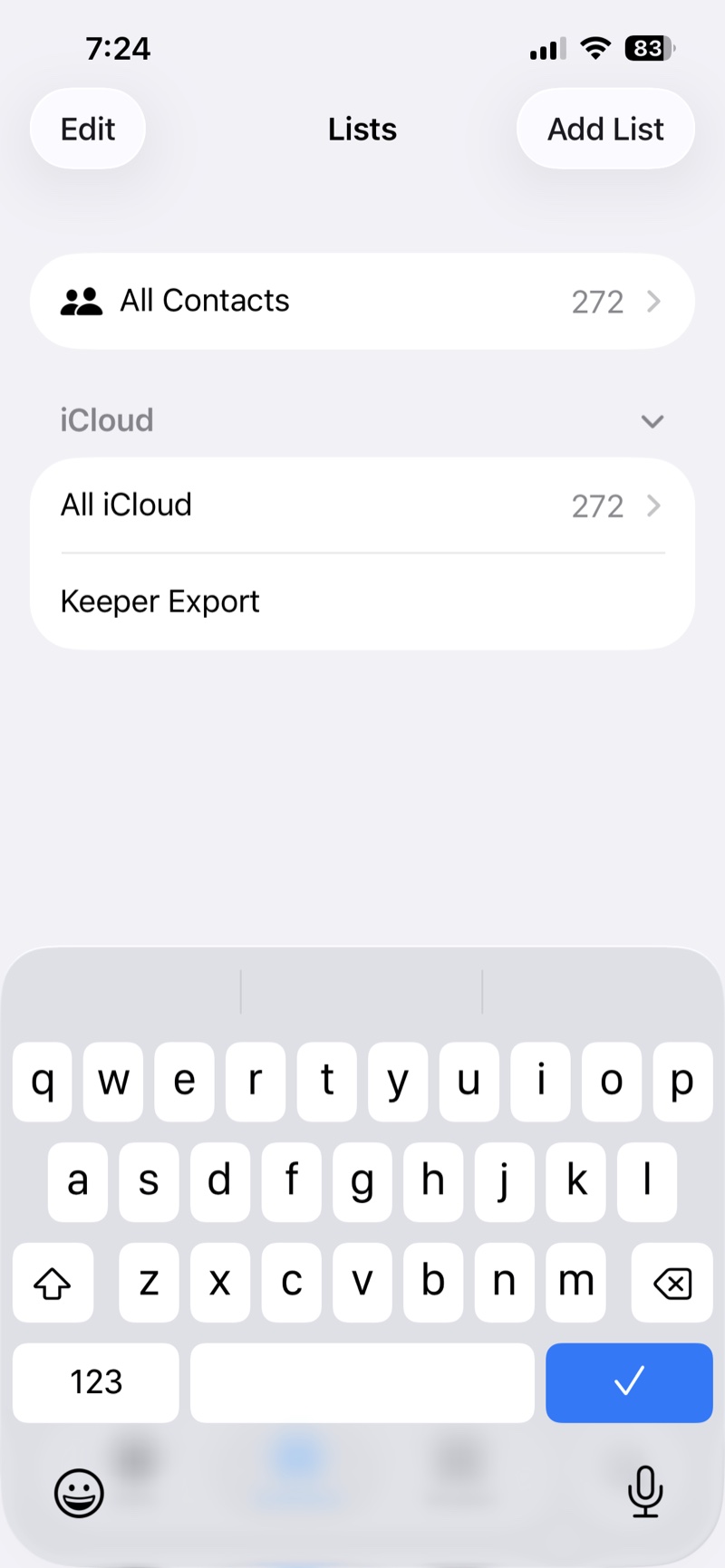
The list is empty for now. Next you'll fill it.
Step 2: Add the contacts you want
There are two ways to add people. Use whichever suits you, or mix them.
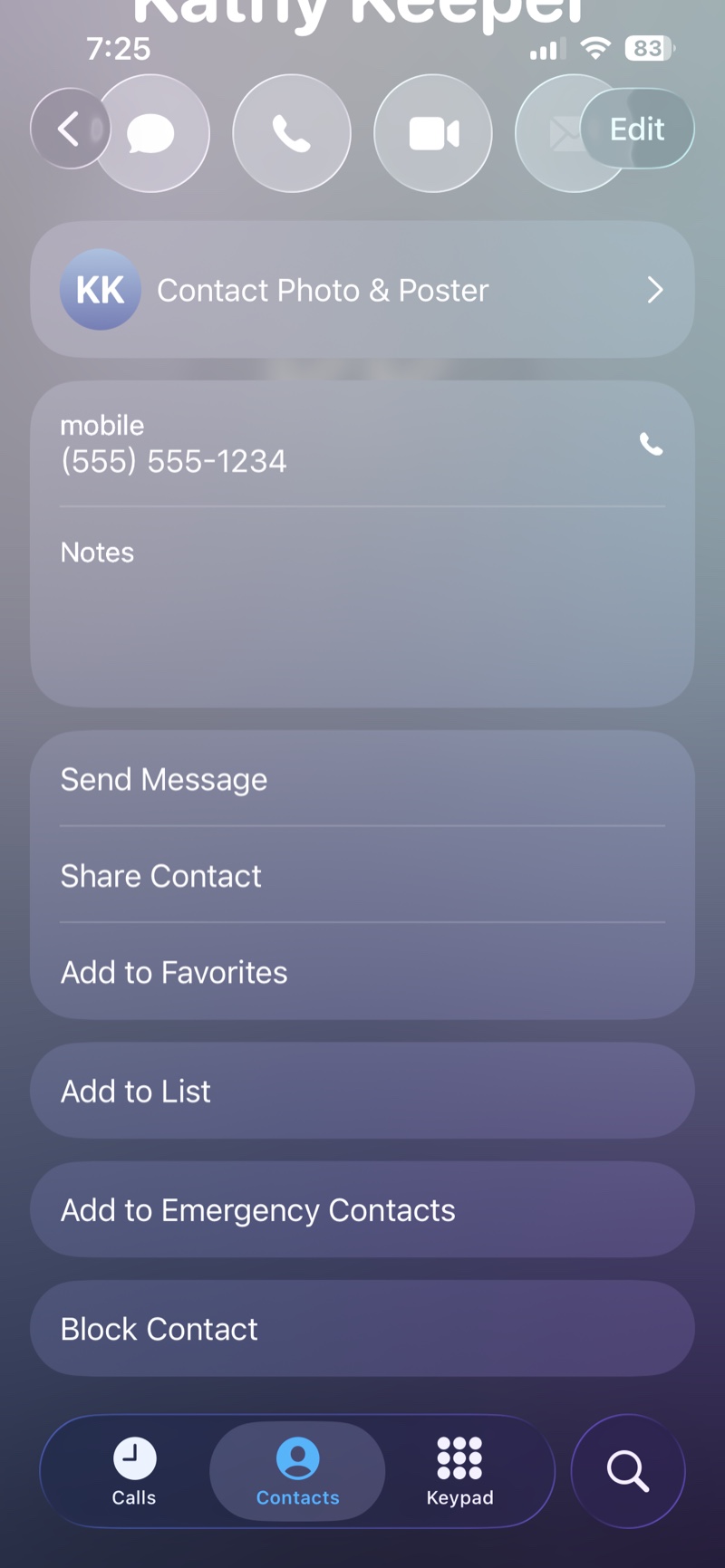
One at a time, from a contact. Open any contact, scroll down, and tap Add to List. Then choose your new list. This is handy when you're already scrolling through your contacts deciding who belongs.
Several at once, from the list. Go back to the Lists screen and tap your list to open it. Tap the + in the top-right corner.
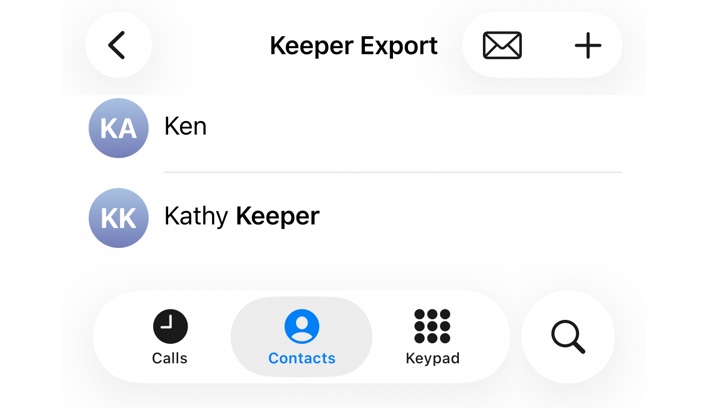
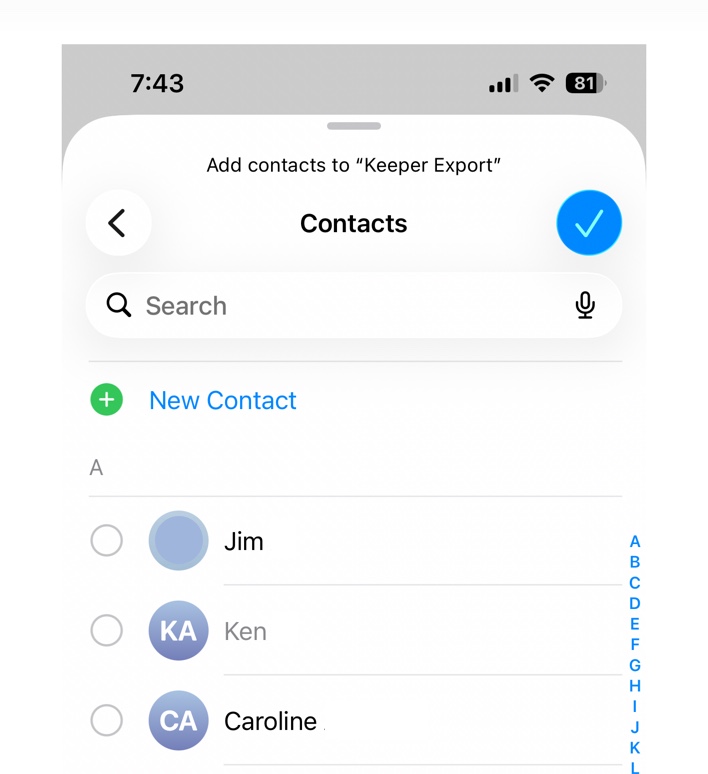
Your full contact list opens with a circle next to each name. Tap each person you want to add, then tap the blue checkmark in the top-right corner.
Adding someone to a list doesn't move or change the contact. It's the same contact, now tagged as part of this group.
A quick test for who belongs: would your spouse, partner, or a grandparent ever need this number when you're not around to ask? If yes, add them.
Step 3: Export the list as a file
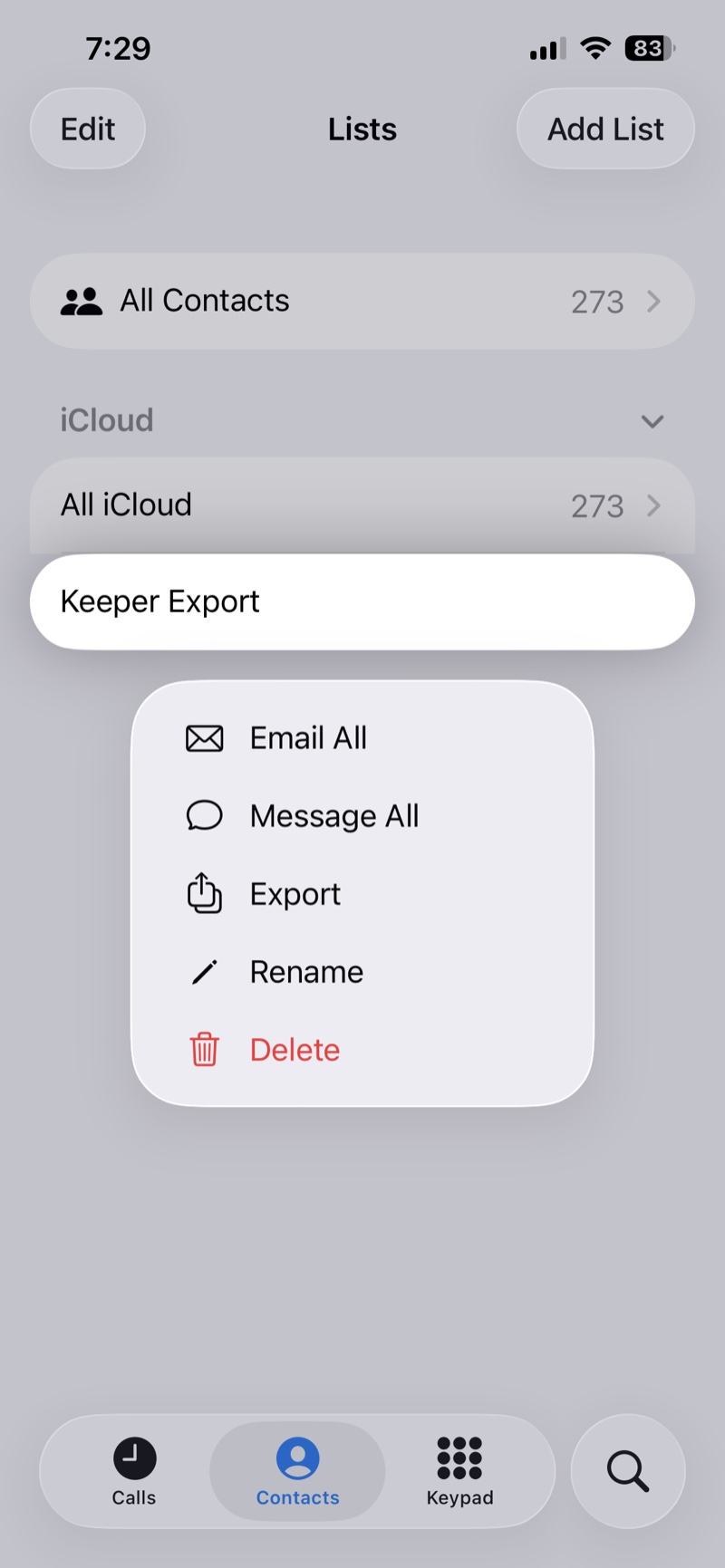
Go back to the Lists screen. Touch and hold the name of your list until a menu appears, then tap Export.
Your phone shows the fields it's about to include, all checked. The list only shows fields your contacts actually use, so yours may be longer than this one. Uncheck anything you don't want to share with your household, then tap the blue checkmark in the top-right corner.
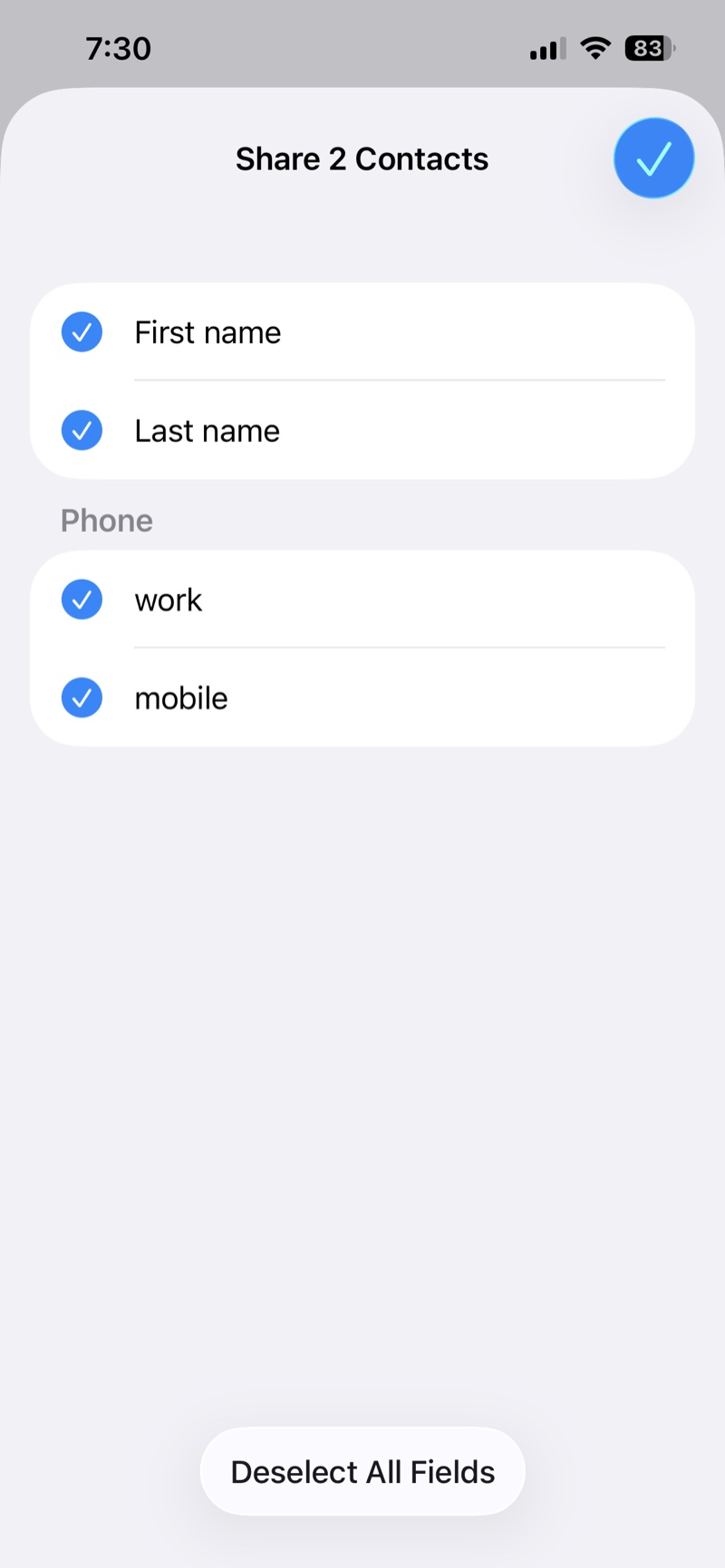
Tip: If a photo field appears in this list, uncheck it. KeeperCircle doesn't import contact photos, and they make the file much bigger.
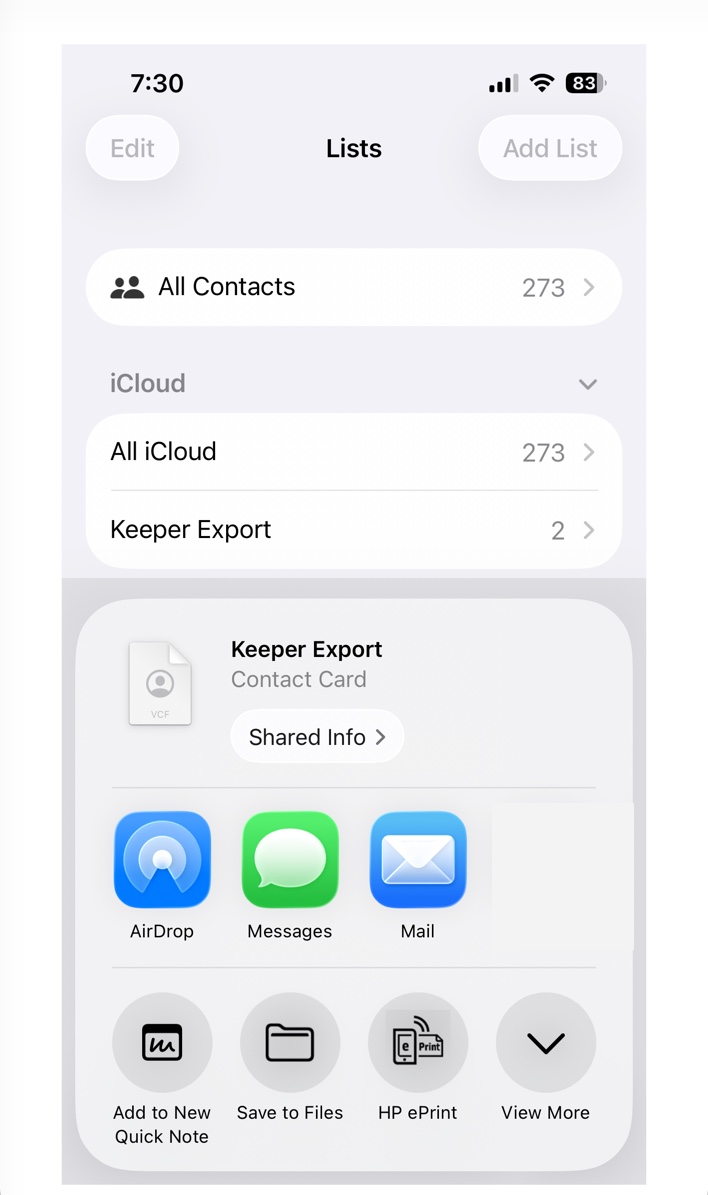
The share sheet opens. Your list is now a single contact card file. Tap Save to Files.
Pick a folder you'll remember, such as Downloads, and tap Save.
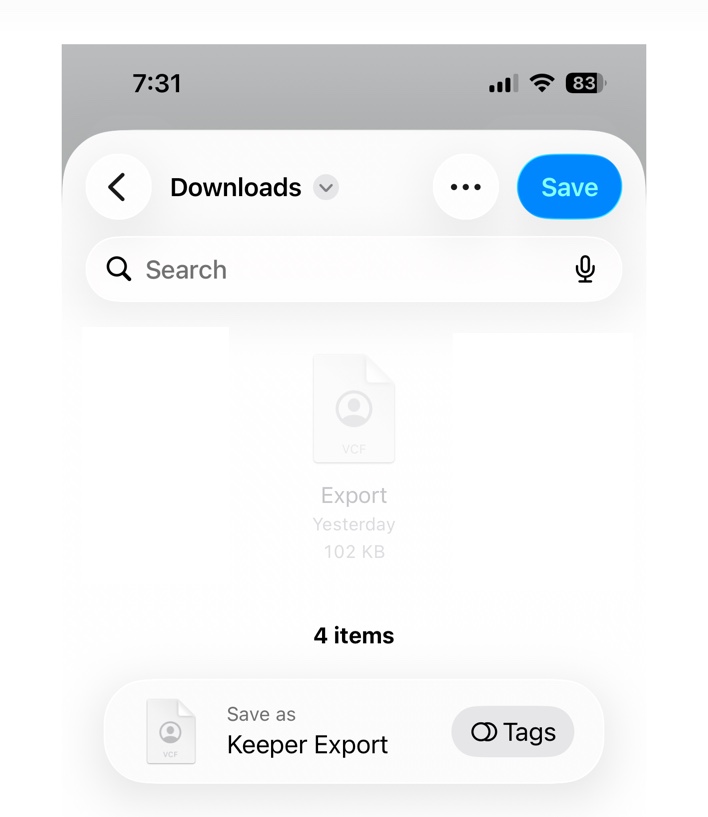
You now have one file ending in .vcf. That's a vCard, the standard format for contact information, and it holds everyone on your list.
Prefer to do this on a computer?
Sign in at icloud.com/contacts. Hold Command on a Mac or Control on Windows and click each contact you want. Then open the menu on the right and choose Export vCard. You get the same kind of .vcf file without needing a list at all.
Step 4: Upload the file to KeeperCircle
KeeperCircle runs in your browser, so you can do this step right on the phone in Safari. It works the same way on a computer.
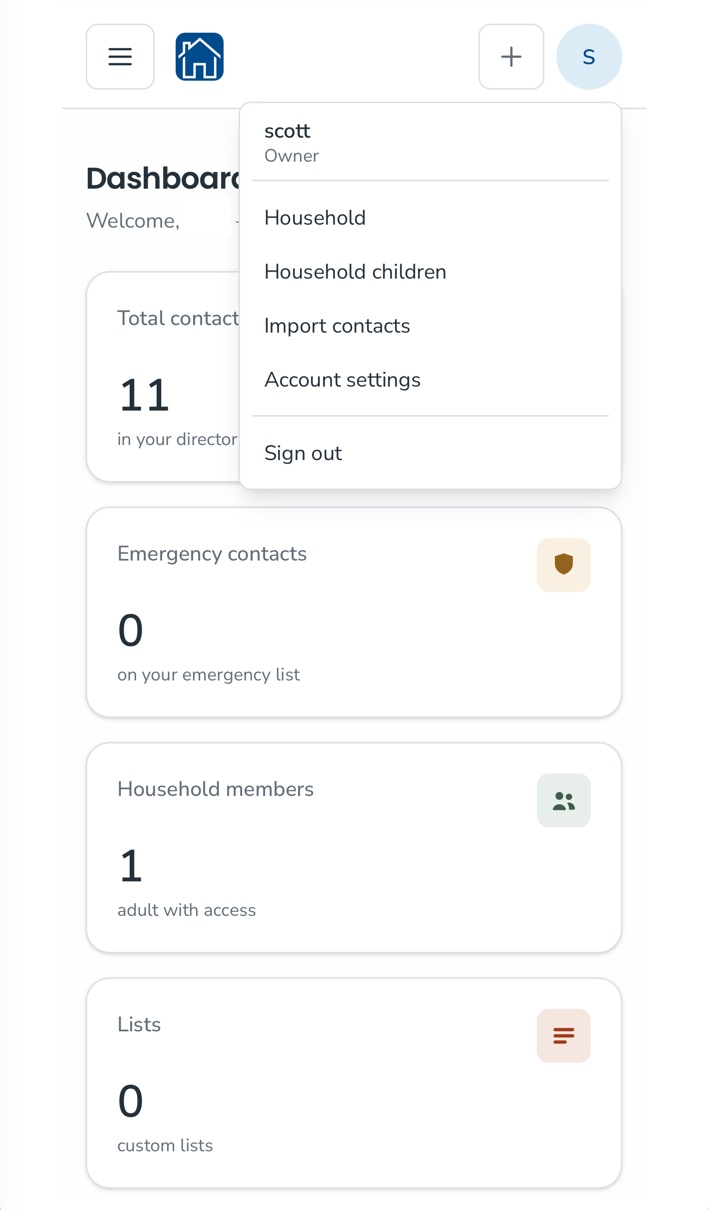
Sign in to KeeperCircle. Tap the circle with your initial in the top-right corner, then tap Import contacts.
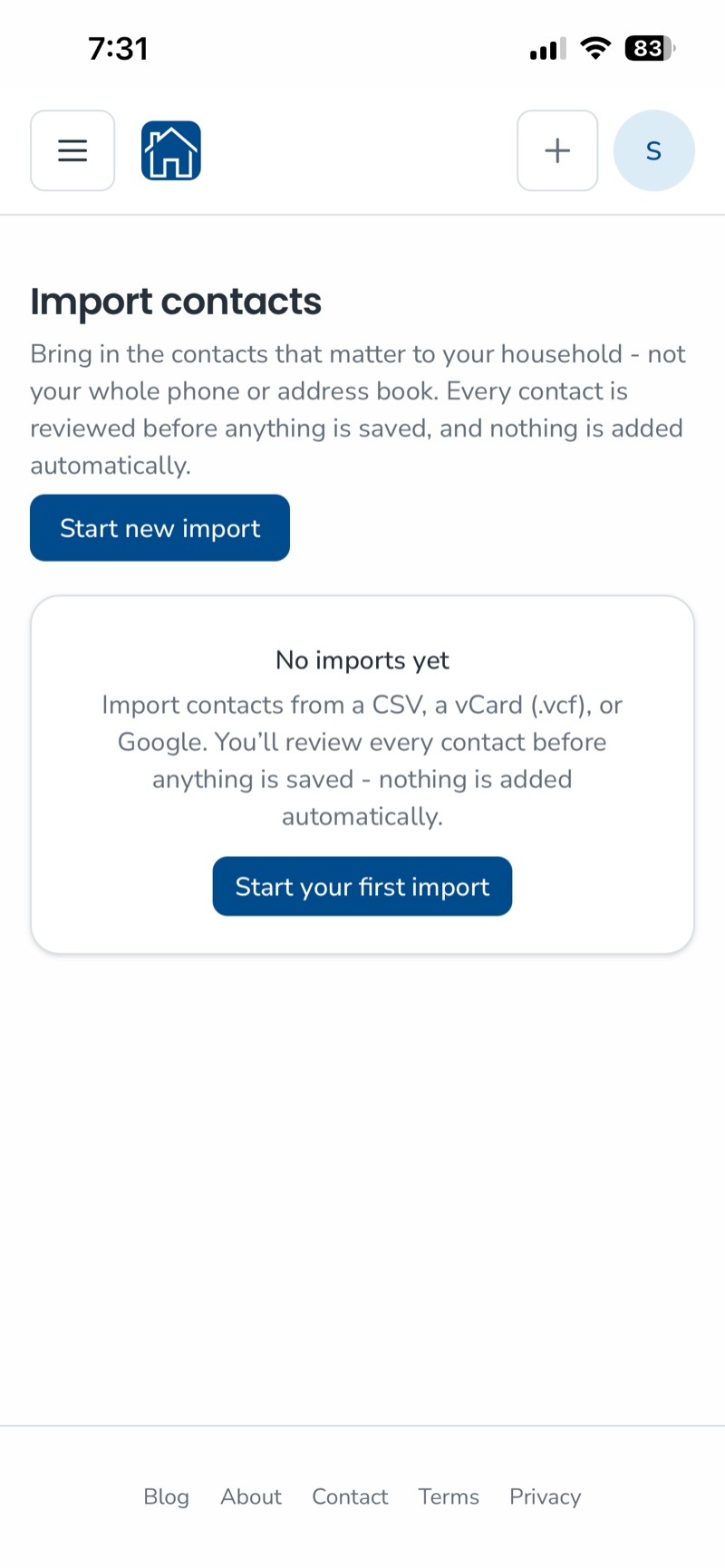
On the Import contacts page, tap Start new import.
Scroll to the card titled Importing from a vCard file and tap Choose File.
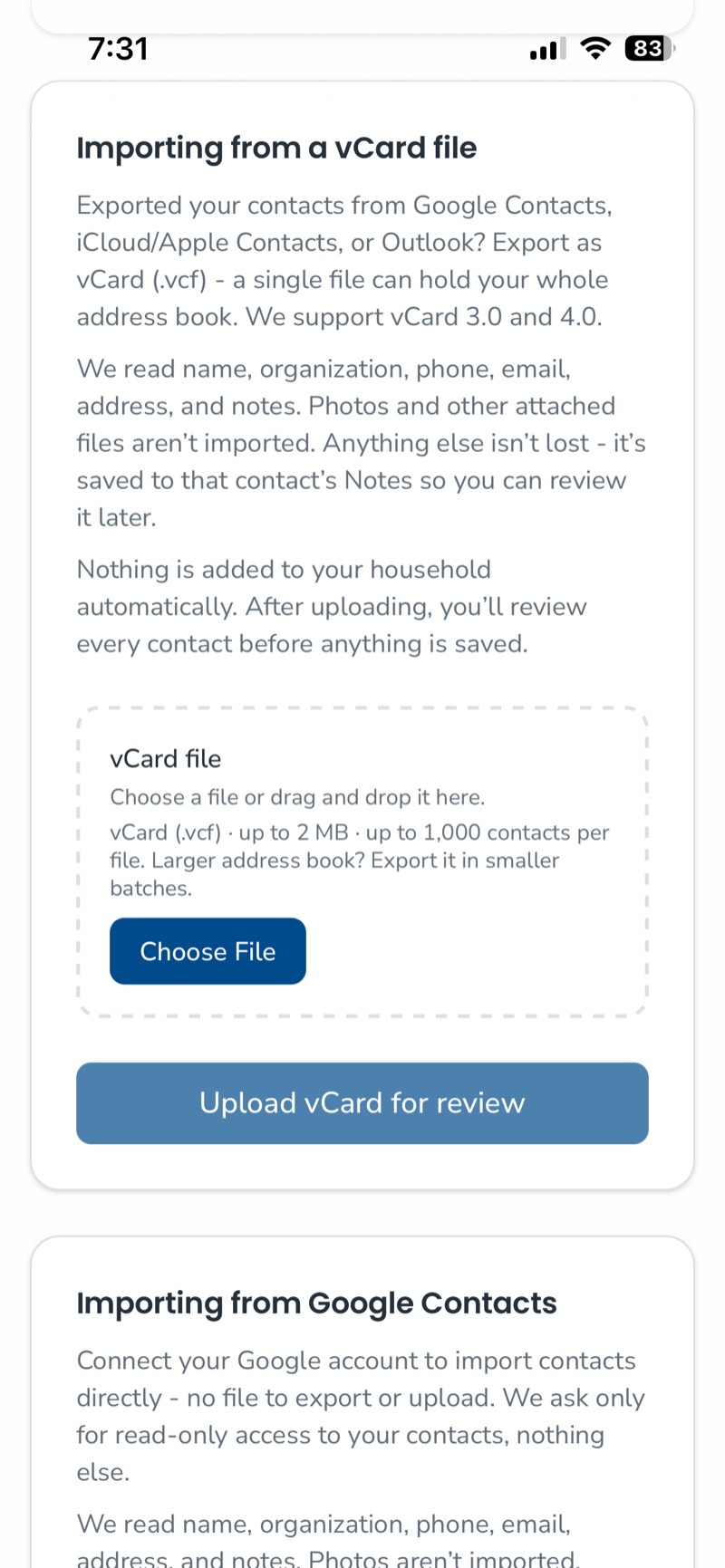
Your Files app opens. Tap the file you just saved. If you don't see it under Recents, tap Browse and open the folder you saved it to.
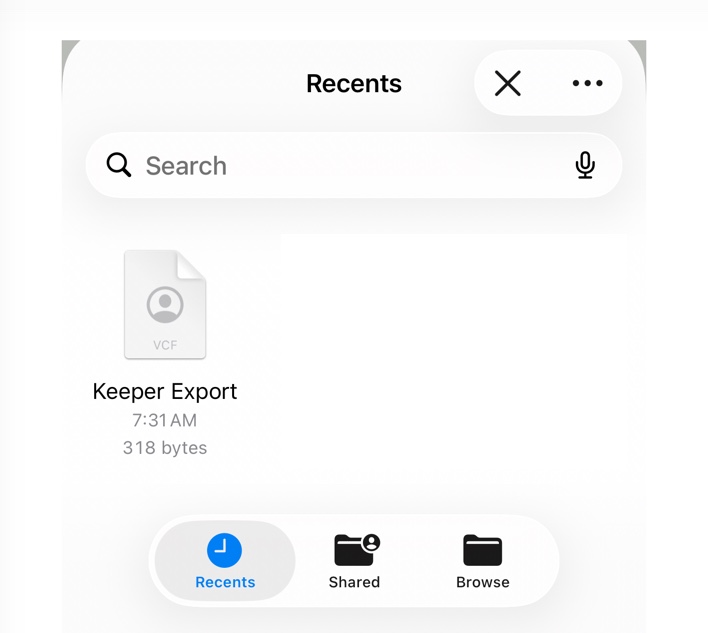
Back in KeeperCircle, a green checkmark confirms the file is selected. Tap Upload vCard for review.
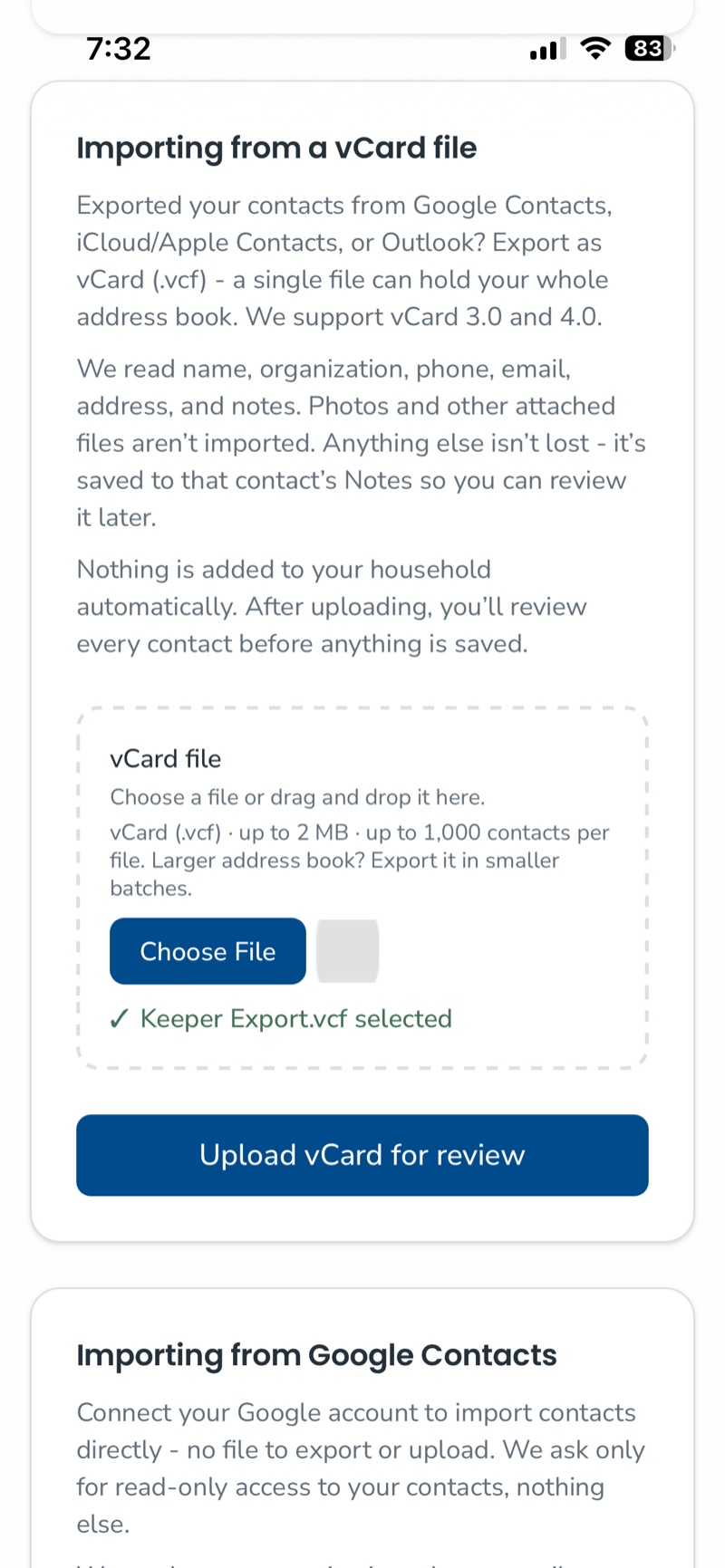
KeeperCircle reads the file and tells you how many contacts it found. Check that the number looks right, then tap Continue import.
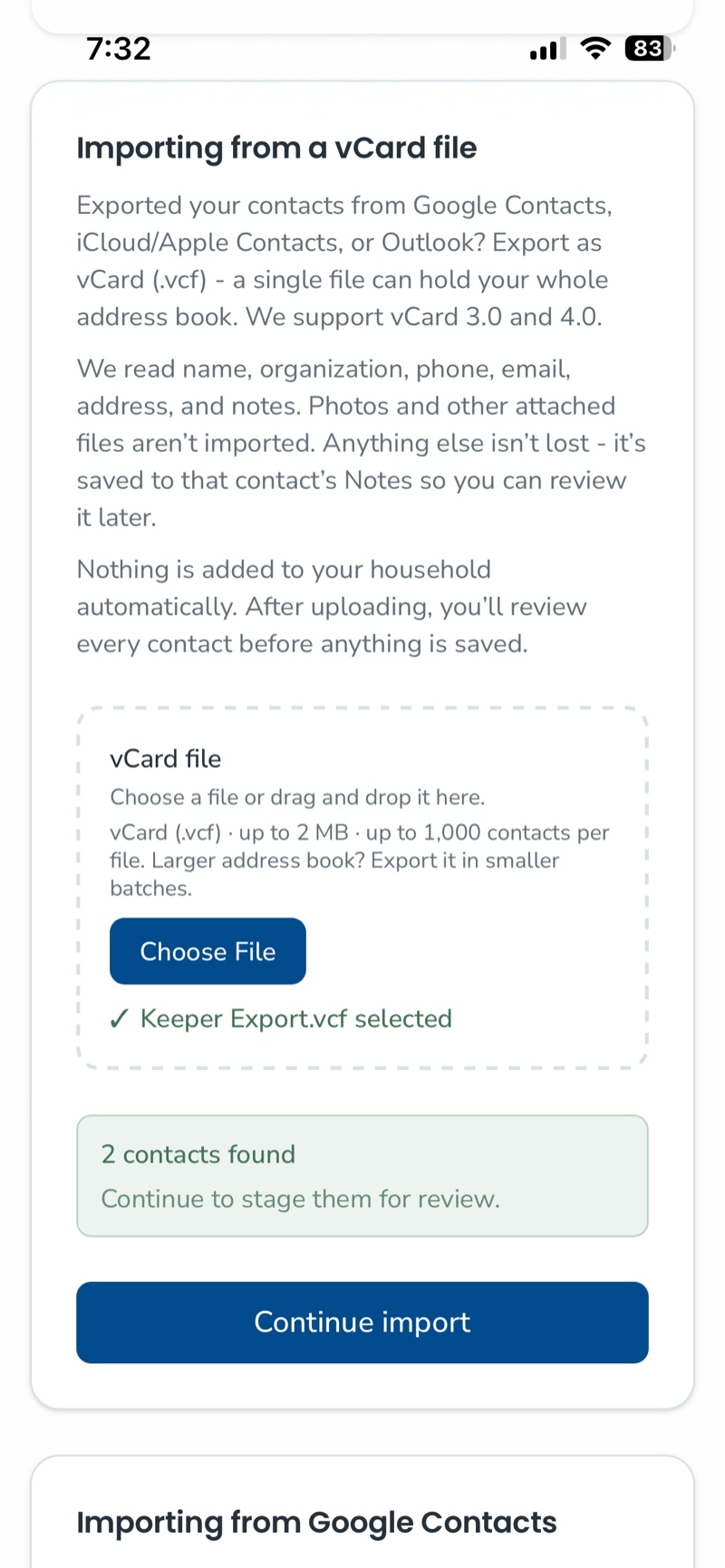
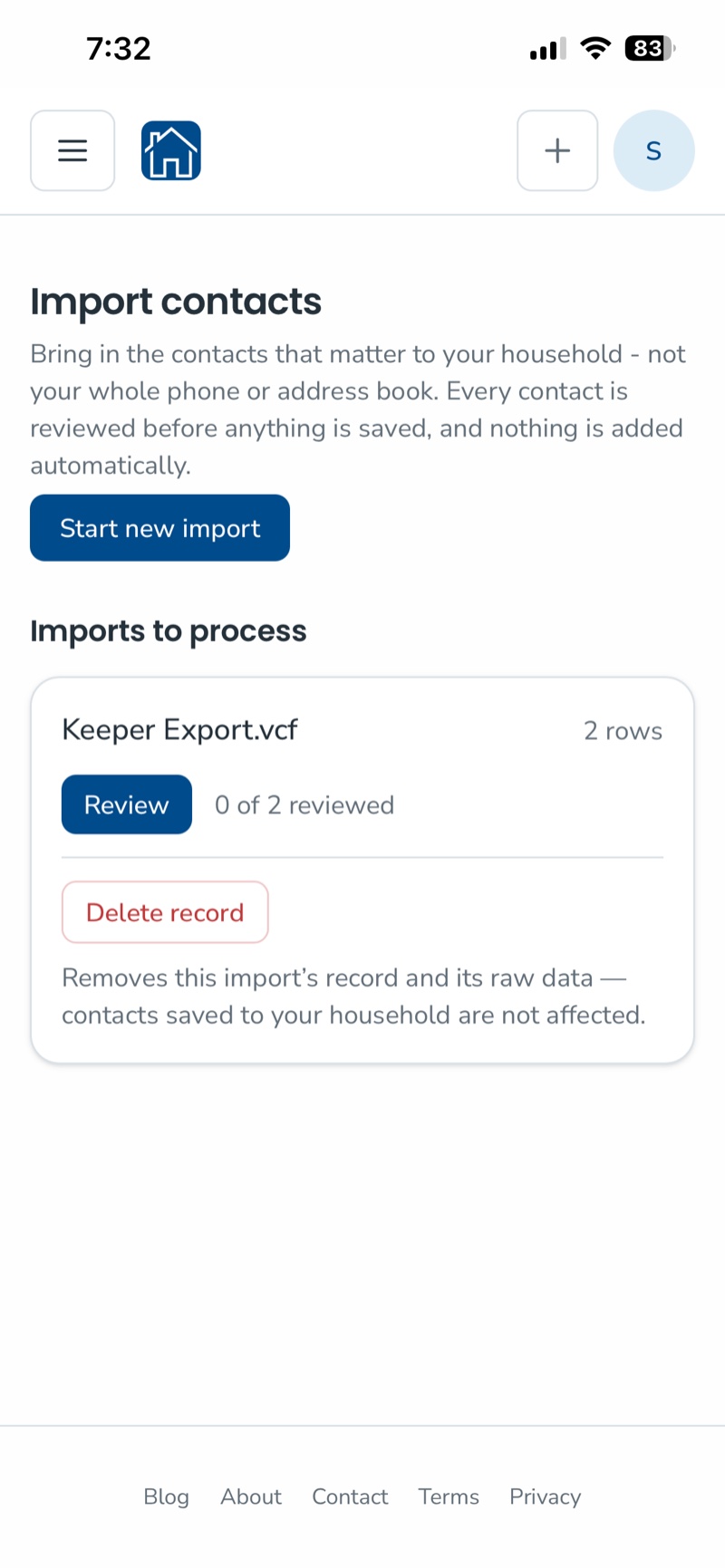
You're returned to the Import contacts page, and your file is now listed under Imports to process.
Step 5: Review and save
Nothing has been added to your household yet. That part is up to you.
Tap Review. KeeperCircle shows you each contact from the file, one card at a time. For each one you can save it as new, fix a field first, merge it with a contact you already have, or discard it.
If someone on your list is already in KeeperCircle, the review flags the likely duplicate so you don't end up with two of the same plumber.
You don't have to finish in one sitting. The counter on the Import contacts page shows how many you've reviewed, and the rest wait for you.
A note on file size
A single import file can hold a large number of contacts, though larger files may not upload. A typical household list is a few dozen names, so this won't come up for most people. If you do hit the limit, uncheck photos in the export or split the group into two smaller lists and import them one at a time.
Step 6 (optional): Clear them off your phone
Once the contacts are safely in KeeperCircle, you can decide what stays on your phone. Check that they saved correctly first.
- To delete a contact from your phone: open the contact, tap Edit, scroll to the bottom, and tap Delete Contact.
- To remove someone from the list only: open the list, swipe left on the name, and tap Remove. The contact stays on your phone.
- To delete the list itself: touch and hold the list name and tap Delete. This removes the list, not the contacts in it.
You don't have to clear out anything. Plenty of people keep the handful of numbers they call every week and remove the rest. And if you later want one back on your phone, open that contact in KeeperCircle and use Save to Phone.
The one thing to remember: it's a copy, not a sync
An import is a one-time copy. After it's done, your phone and KeeperCircle don't talk to each other.
- Change the sitter's number on your phone, and KeeperCircle still shows the old one.
- Update the dentist's address in KeeperCircle, and your phone doesn't know.
The simple fix is to pick one home for household contacts and make changes there. That's what KeeperCircle is for. When a number changes, update it once in KeeperCircle and everyone in your household sees the new one.
Got a new batch of contacts later, such as next season's team roster? Run the same steps again with a new list. The review catches anyone you've already imported.