How-To Guide
How To: Import Your Contacts (Google, iPhone, or CSV)
We have never met anyone that gets a lot of enjoyment out of data entry. The real value of KeeperCircle is the same as so many others… it's in the ease of lookup and usage over the years. But to start, there's really two main ways to go…
- Jump start by using the import tools. Categorize or add info as you see fit. Or save that part for later. Maybe do it some evening while watching TV; just process the contacts you want.
- Start with nothing and over time add to it. You'll quickly build it to where it's useful.
The goal is to upload what you've got, review it and enhance the info in a useful manner. That's what's going to give you the value over time.
Before you start
- KeeperCircle can connect directly to Google Contacts. And for file upload, we can take in vCard (.vcf), (used by Apple and others), and plain CSV (.csv) files in case you've been storing such contacts in spreadsheets.
- You don't need to clean up standard files first. The import review step lets you keep, skip, and fix contacts one at a time before they're saved. For .csv files, KeeperCircle recognizes the common column names used by Google, Outlook, and typical spreadsheet exports — but it's really best if the columns match the labels in the sample sheet. Anything we don't recognize isn't lost; it's kept with the contact as notes for you to sort out later.
- On the free plan a household can hold up to 100 contacts. If you're importing more than that, consider importing just the household-relevant ones. KeeperCircle isn't meant to hold your entire phone address book, only the contacts your family actually shares, and those for which you wish to add enhanced contact data.
Choosing an Import Method
From your account icon on top right of screen, select "Import Contacts" from the menu. You'll see multiple options, including importing from Google Contacts directly by connecting to your account. However, you can also use manual export from that account to import as well. Those instructions are coming up, but if your contacts are already in a Google account, a direct connection is likely the fastest and easiest way.
Step 1: Export your contacts from existing sources
From Google Contacts
Prefer not to connect your Google account? Export a file manually instead:
- Go to contacts.google.com and sign in.
- Select the contacts you want to bring over, or skip selection to export everything.
- Click Export in the left sidebar.
- Choose vCard (or Google CSV — both work) and download the file.
From an iPhone (via iCloud)
- Go to icloud.com on a computer and sign in with your Apple ID.
- Open Contacts.
- Select the contacts you want (Cmd/Ctrl-click for several, or Select All).
- Click the gear icon and choose Export vCard. A .vcf file downloads.
From a spreadsheet or anywhere else
Any CSV with a header row works. If you're building one by hand, download the sample CSV on the import page to see the column names KeeperCircle recognizes. Columns we don't recognize aren't lost — their contents are kept with the contact as unmapped data notes so you can sort them out later. Here is the sample: sample-import.csv
Step 2: Upload the file
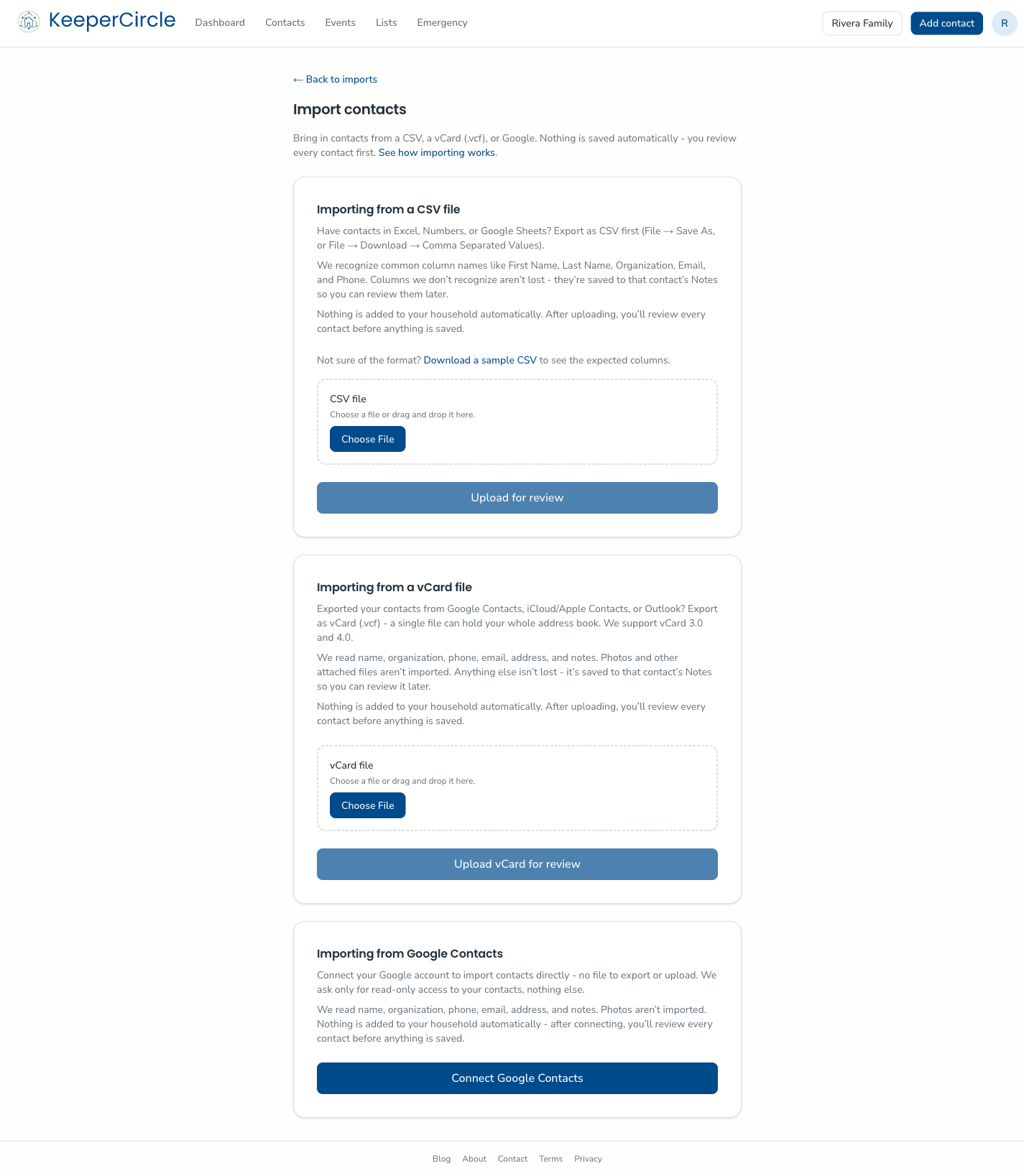
CSV or vCard (.csv, .vcf) · up to 2 MB · up to 1,000 contacts per file. Larger address book? Export it in smaller batches.
- In KeeperCircle, go to Imports and start a new import.
- Upload your .vcf or .csv file.
- KeeperCircle reads the file and tells you how many contacts it found before anything else happens. If a few records in the file are malformed, the rest still come through — problem rows are set aside, and you can download a list of skipped rows with the reason each one was skipped.
Step 3: Review before saving
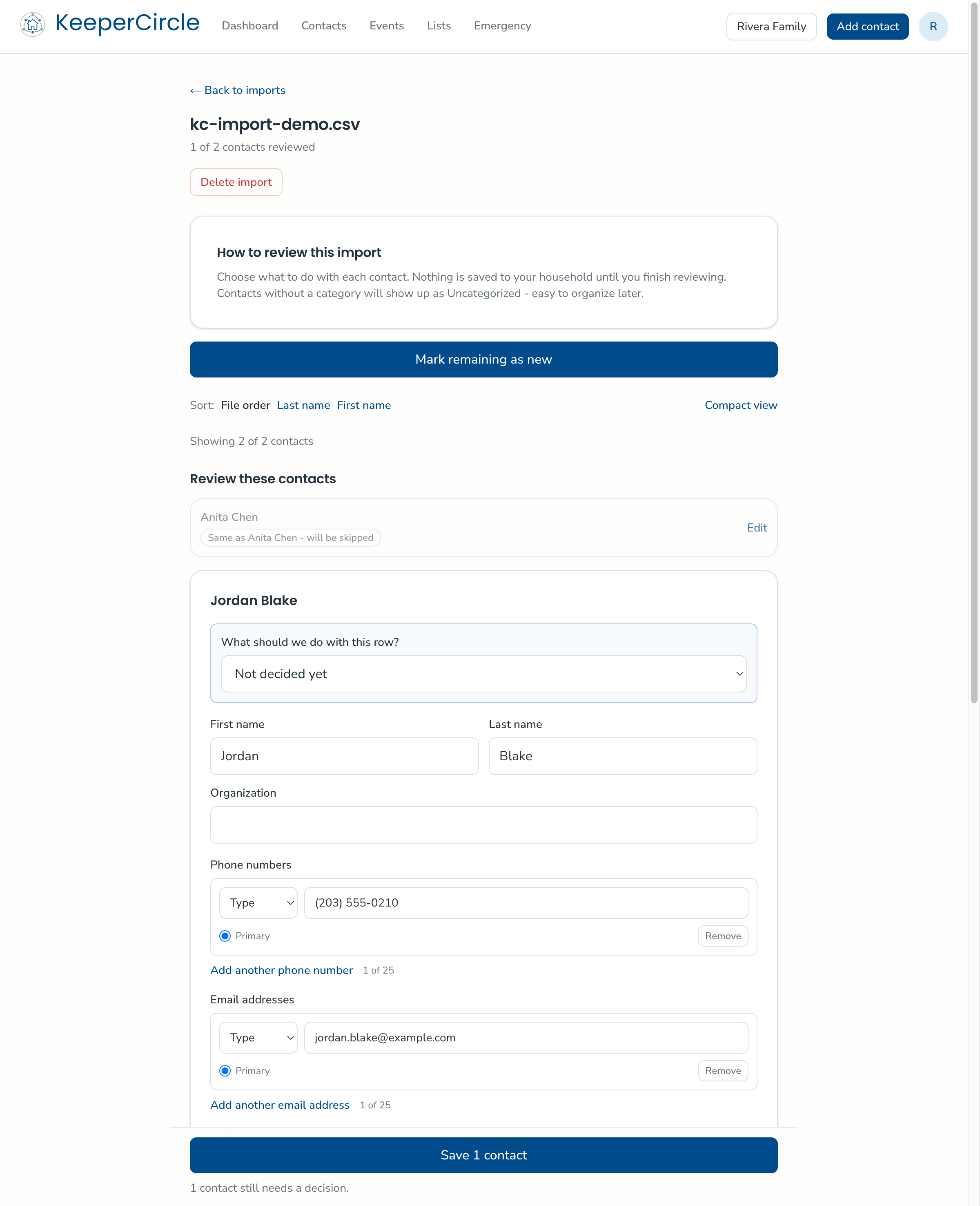
Every imported contact lands in a review list first. For each one you can:
- Keep it — it's added to your household.
- Skip it — it's left out, and you can download the skipped list afterward.
- Fix it up — adjust names and details before saving.
Possible duplicates of contacts already in your household are flagged so you don't end up with two entries for the same person. Contacts without a clear category come in as Uncategorized — you can organize them any time.
Step 4: Done — and safe to re-run
Save your reviewed batch and the contacts join your household. If you're not sure whether you already imported a file, it's safe to upload it again: contacts you already brought in are recognized rather than duplicated.
Good to know
- Your import file is processed to build the review list; what ends up in your household is only what you approve.
- Past imports stay listed on the Imports page, so you can see what came in and when.